

Warehouse Delivery
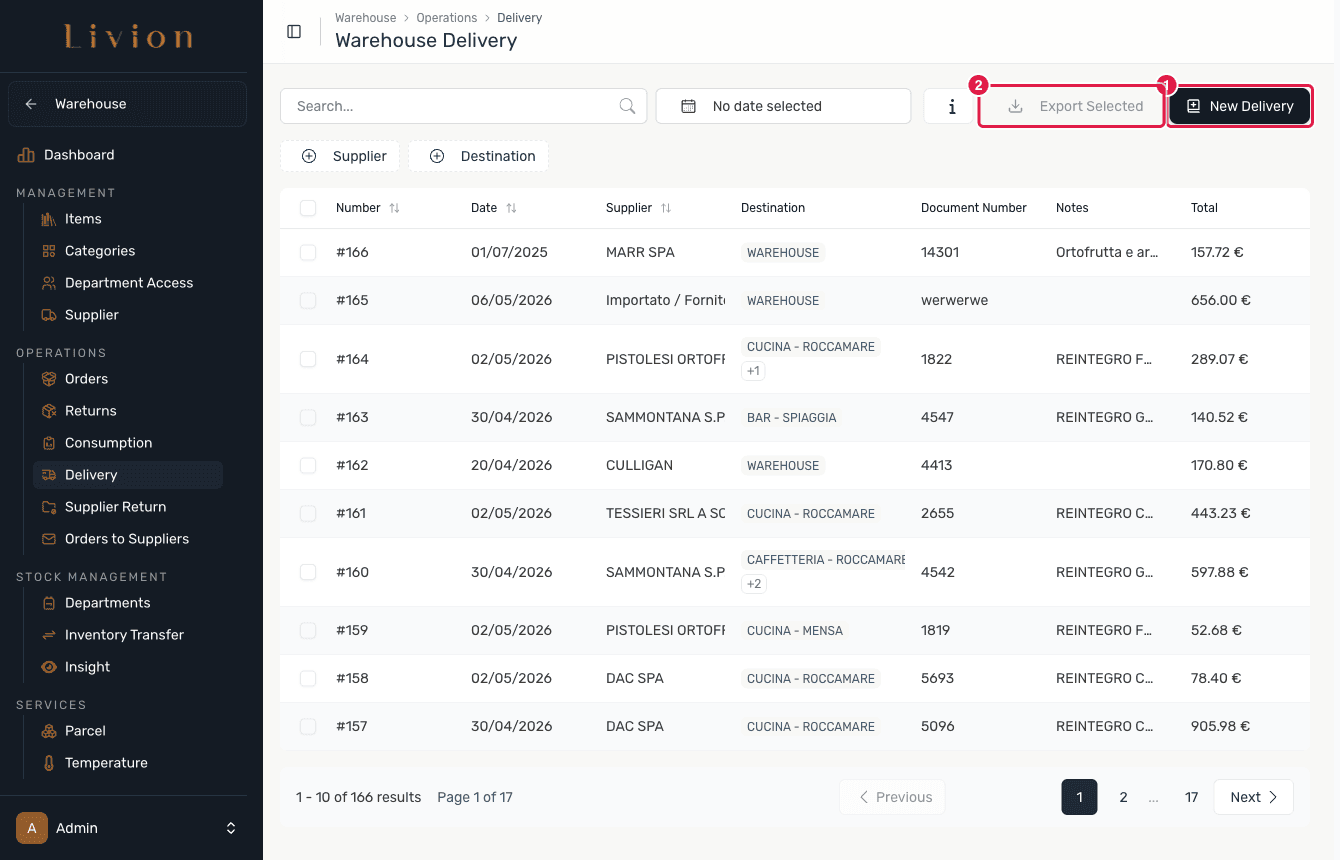
All warehouse deliveries are listed here. New deliveries can be added with the 'New Delivery' button.
All warehouse deliveries are listed here. New deliveries can be added with the 'New Delivery' button.
warehouse role.Recording deliveries requires the Warehouse administrator permission. This is how incoming supplier goods enter your stock.
How it works
Review deliveries
In the Warehouse module open Operations → Warehouse Delivery. Every recorded delivery is listed with its supplier, document number and date. Start a new one with New Delivery.
Record a new delivery
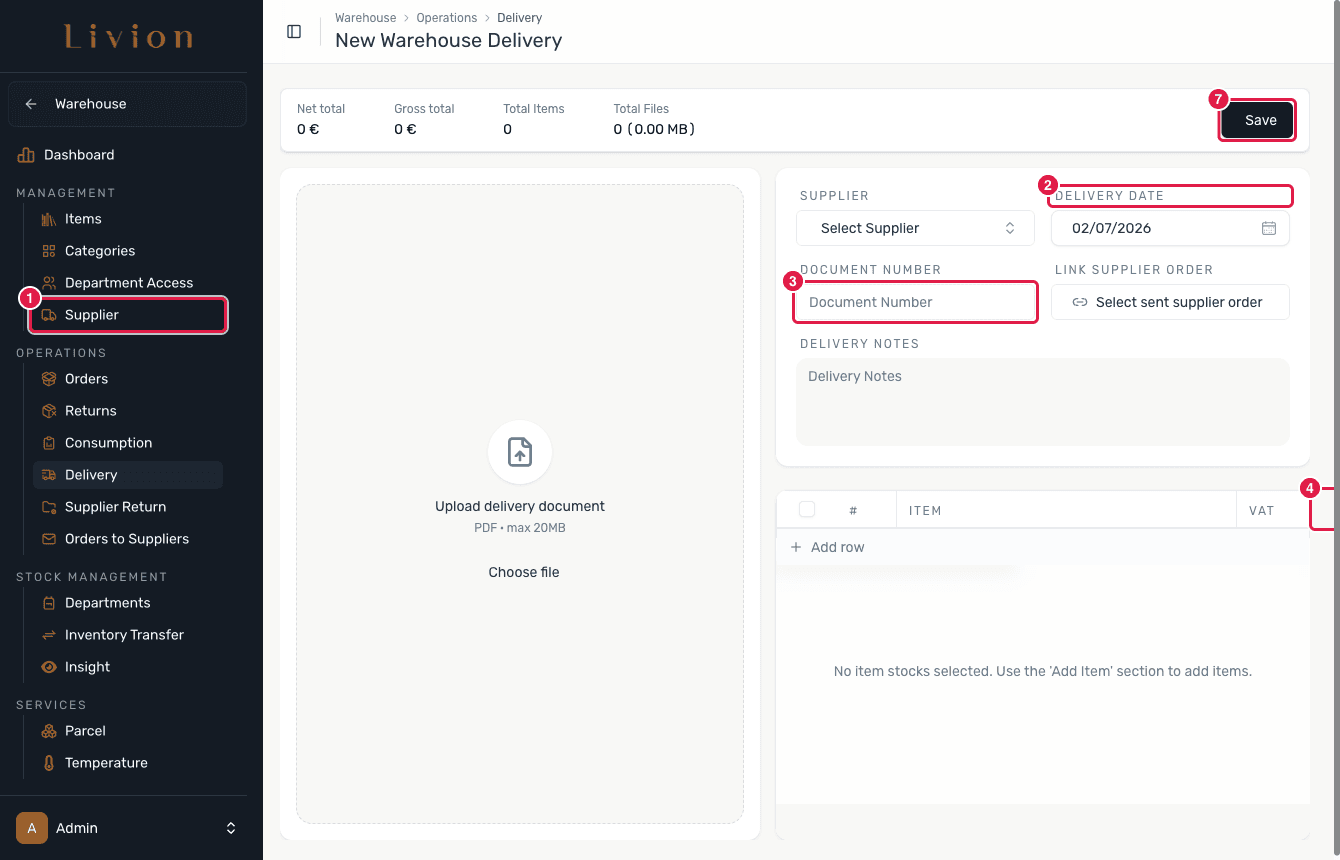
In New Delivery, pick the supplier, the delivery date (it cannot be in the future) and the document number. Then add item lines, each with a quantity, a unit price and a destination — the central warehouse or a specific department. Click Save to record the delivery. Instead of keying the lines by hand, you can drop a supplier document into the Upload delivery document (PDF, max 20MB) area to extract the line items — see Import from a PDF below.
Edit or delete a delivery
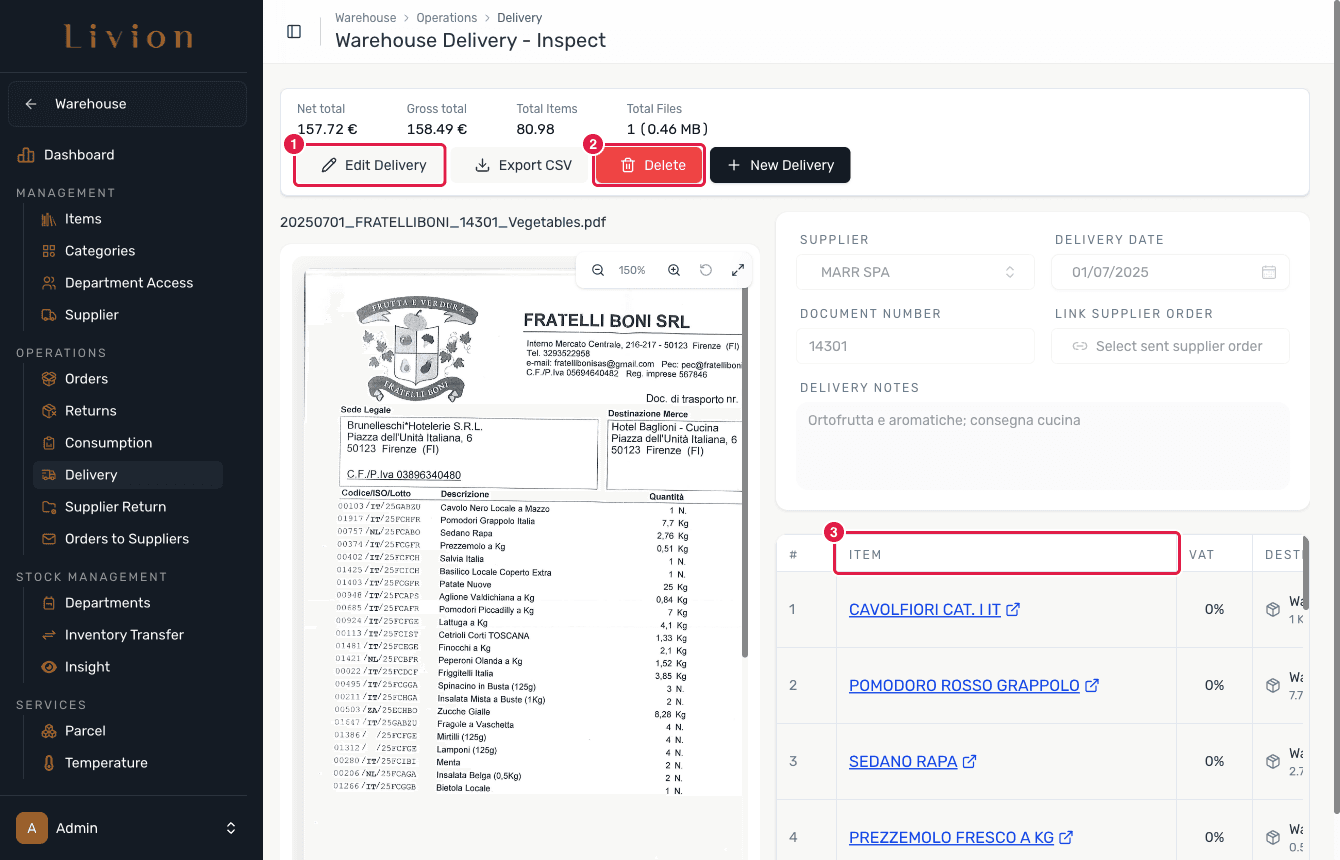
Open a delivery to review or adjust it. The detail lists its item lines with Edit and Delete actions. Editing re-balances stock, and deleting is a soft-delete that reverses the delivery's stock.
What happens next
- Submitting a delivery adds the delivered stock to each line's destination (the warehouse or a department) through stock movements, and records the supplier/item purchase price.
- Editing a delivery adjusts stock with a movement of Type
AUTOMATIC_STOCK_UPDATE. - Deleting a delivery is a soft-delete that reverses the delivery's stock.
- Uploading a PDF on the New Delivery form extracts line items (OCR) and matches them to the catalogue.
The delivery date cannot be in the future, and a duplicate guard blocks a second delivery with the same supplier, document number and business day.
Import from a PDF
Instead of keying line items by hand, Livion can build the delivery directly from a supplier's delivery document. You need the document as a PDF — digitally generated PDFs work best.
Handwritten documents are not guaranteed to extract correctly. Any line item the system cannot confidently match is flagged for you to confirm.
Upload the document
Open the Warehouse module and start a new delivery from a PDF, then upload the supplier document.
Review extracted line items
Livion extracts the line items and matches them to your catalogue products. Confidently matched items are ready to go.
Confirm uncertain matches
Items the system is unsure about are marked as uncertain matches. Review each one and pick the correct catalogue product, or leave it unmatched.
Confirm the delivery
Once the line items look correct, confirm the delivery. This records the same delivery, stock movements, supplier price records and audit events as a manual delivery.