

Department access
Assign warehouse categories and items to departments.
Department access decides what each department can see and order from the catalogue. You grant a department the categories and items it works with, and everything else stays out of its way.
warehouse role.Managing department access requires the Warehouse administrator permission.
How it works
Pick a department
In the Warehouse module open Management → Department access and choose the department you want to configure. The screen loads that department's current access so you can see what it can already reach.
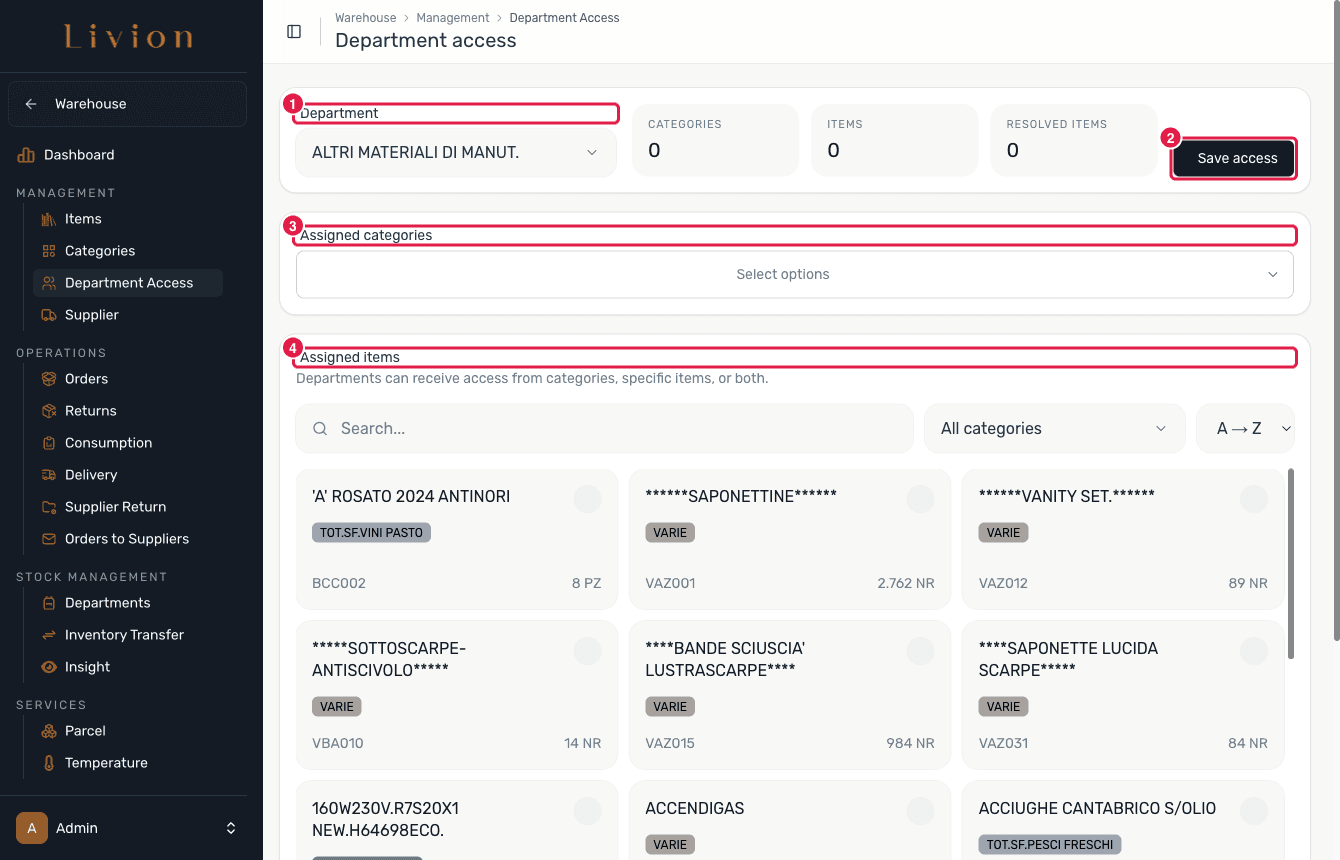
Assign categories and items
Select the categories and/or the specific items the department should be able to work with. Selecting a category grants every item inside it and the items in its descendant categories — those are resolved automatically, so you do not have to tick each subcategory by hand.
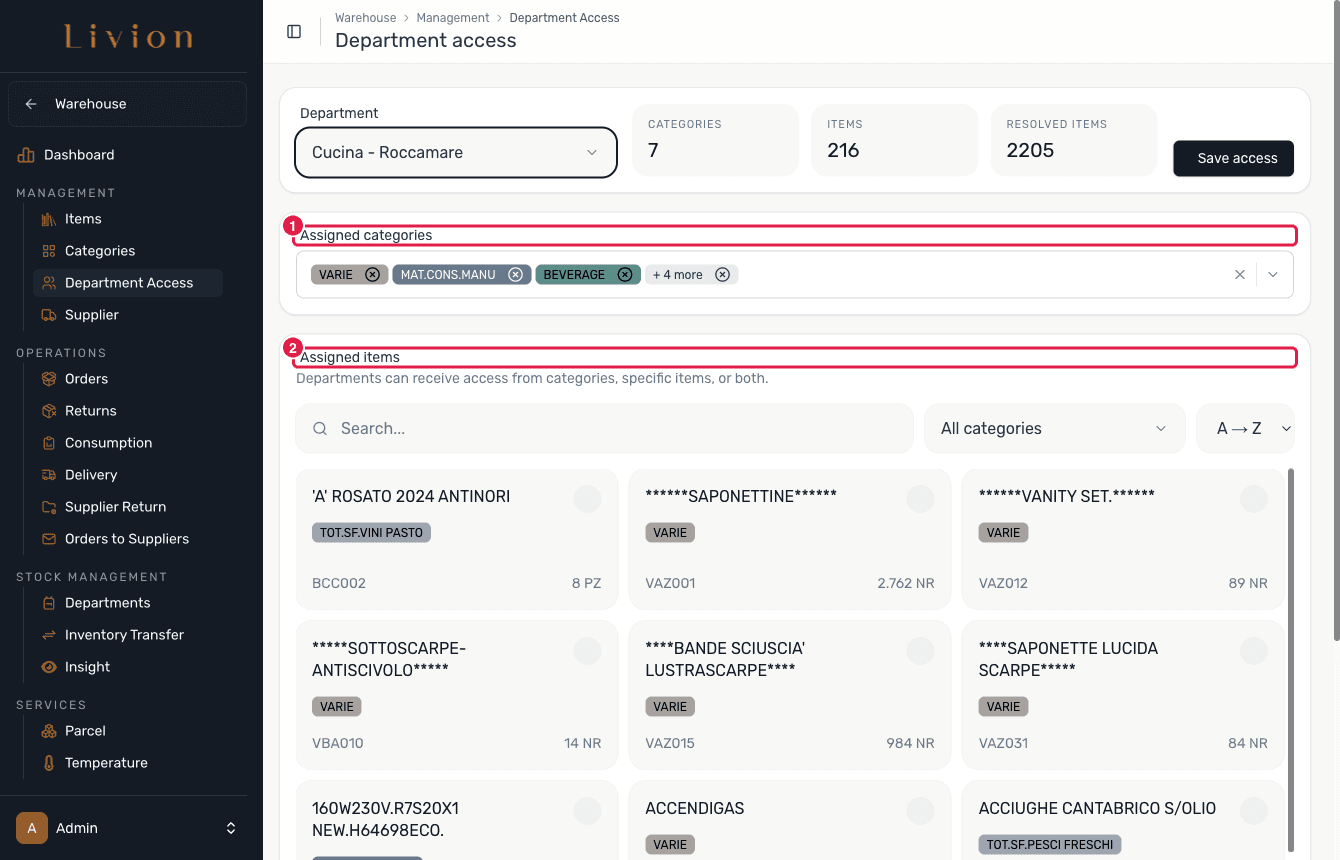
Save access
Click Save access to store the department's access. Livion upserts the whole selection for that department in one step, replacing what was there before.
What happens next
- The department's access is updated to exactly what you selected: the chosen items plus every item resolved from the chosen categories and their descendants.
- This access gates what the department can view and order — it does not move any stock.
- Items that no longer exist are dropped from the selection when it is saved, so access never points at deleted items.
Access is saved per department as an upsert — there is no separate delete. To remove a department's access, clear its selection and save again. Saving one department never changes another department's access.