

Orders to Suppliers
Manage items to reorder by supplier and send supplier emails.
Manage items to reorder by supplier and send supplier emails.
warehouse role.Managing the reorder queue and sending supplier emails requires the Warehouse administrator permission.
How it works
Build the reorder queue
In the Warehouse module open Services → Orders to Suppliers. Items to reorder are grouped by supplier. Add items to reorder — from an order's details or as extra items — and edit the quantities.
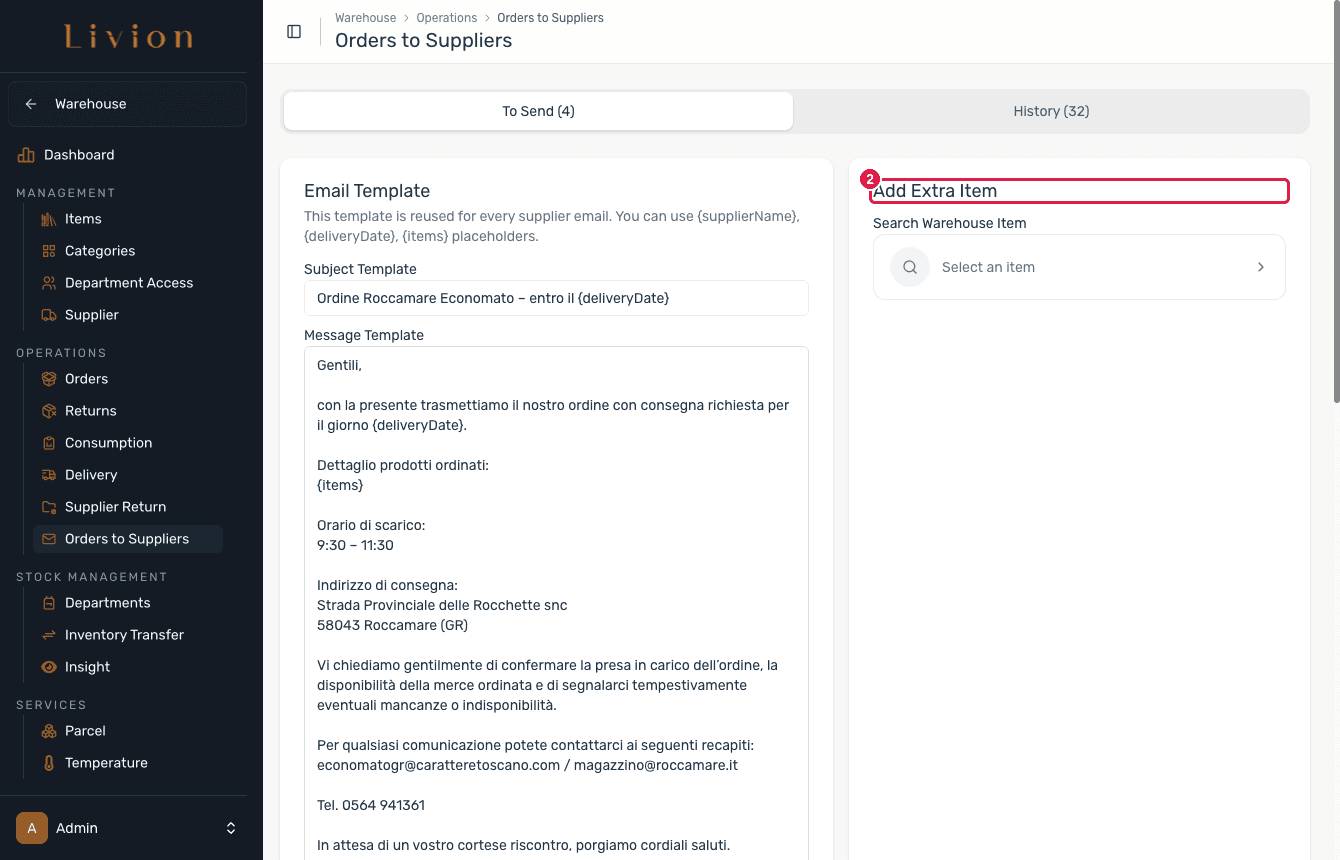
Set the email template
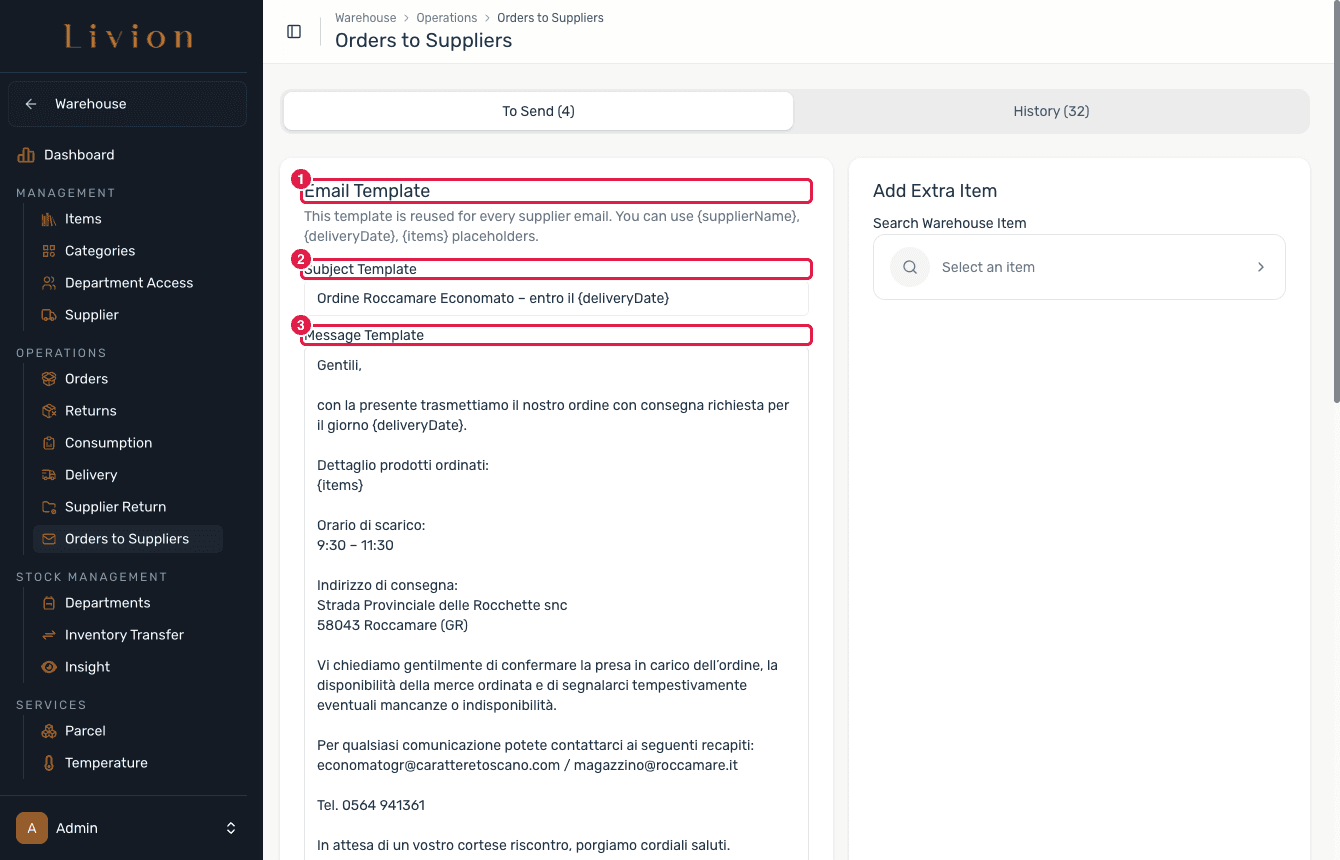
For a supplier, save an email template with a Subject and Message
Template. The template supports the placeholders {supplierName},
{deliveryDate} and {items}.
Send the supplier order
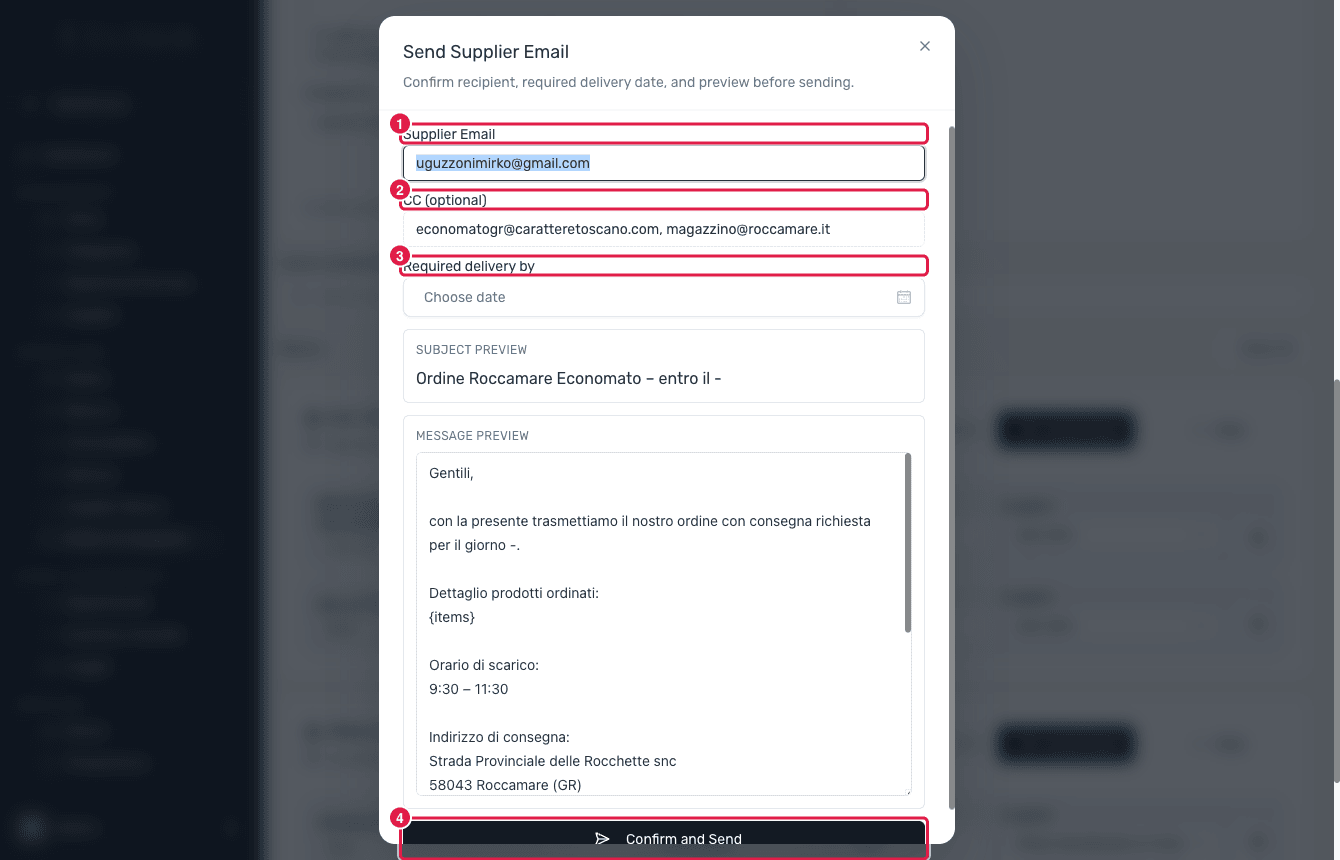
Open the Send dialog, where you set the Required delivery by date (required), confirm the Supplier Email and an optional CC, then Confirm and Send. Livion generates a supplier-order PDF, emails it to the supplier and logs it in the order history.
What happens next
- Sending generates a supplier-order PDF and emails it to the supplier (with an optional CC).
- The send is logged in the order history for traceability.
Sending emails requires the supplier's contact details: email must be configured and the supplier must have a contact email. A required delivery date must be set before you can send.