

Inventory Transfer
Move items between departments and the warehouse. Select source and destination, then choose items and quantities to transfer.
Inventory Transfer moves stock between locations — warehouse to department, department to warehouse, or department to department — and records every movement so balances stay traceable.
warehouse role.Running transfers in any direction requires the Warehouse administrator permission. Department users have a restricted self-service transfer from their own department only.
How it works
Open Inventory Transfer
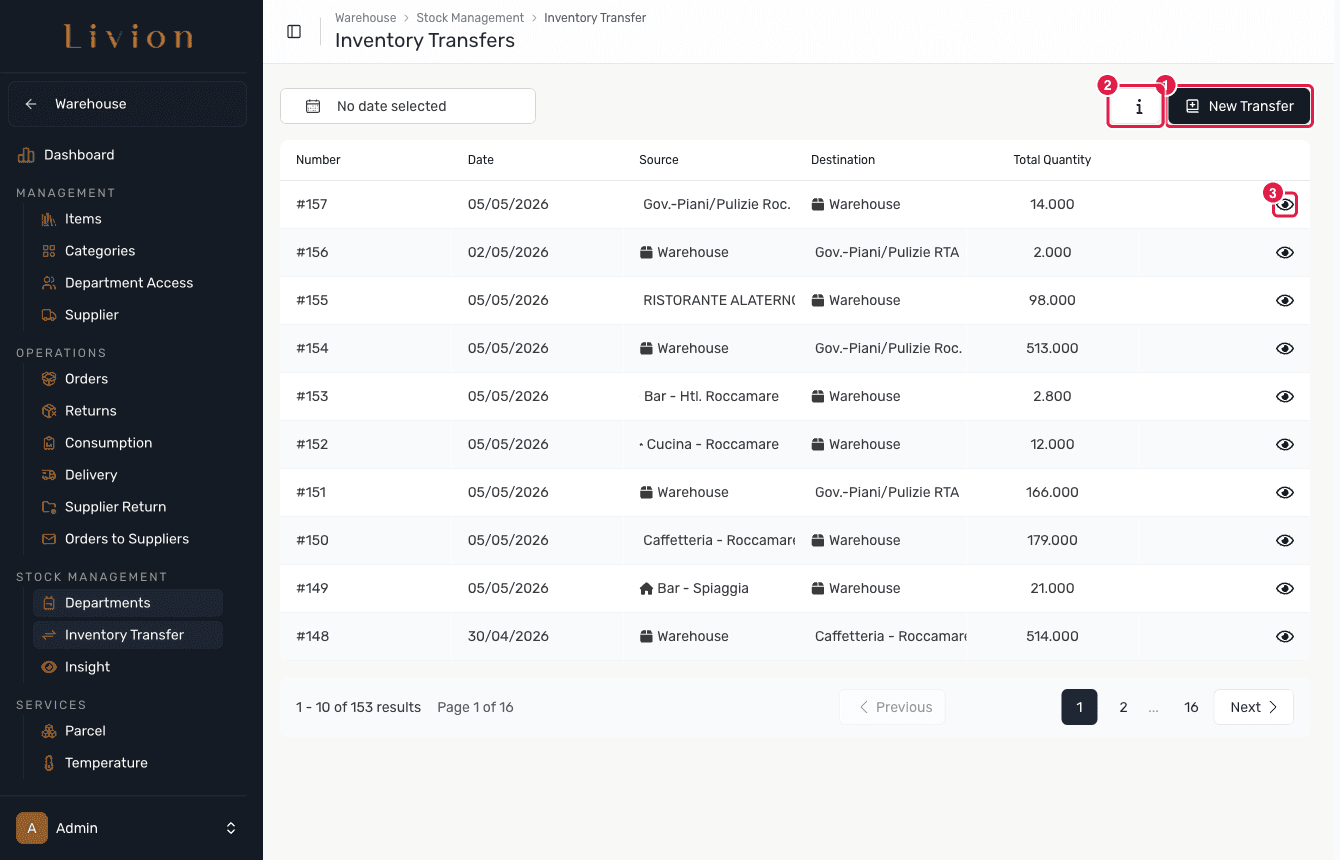
In the Warehouse module open Stock management → Inventory Transfer, or use the Transfer Stock entry point on Department Inventory. The page lists past transfers; click New Transfer to start one.
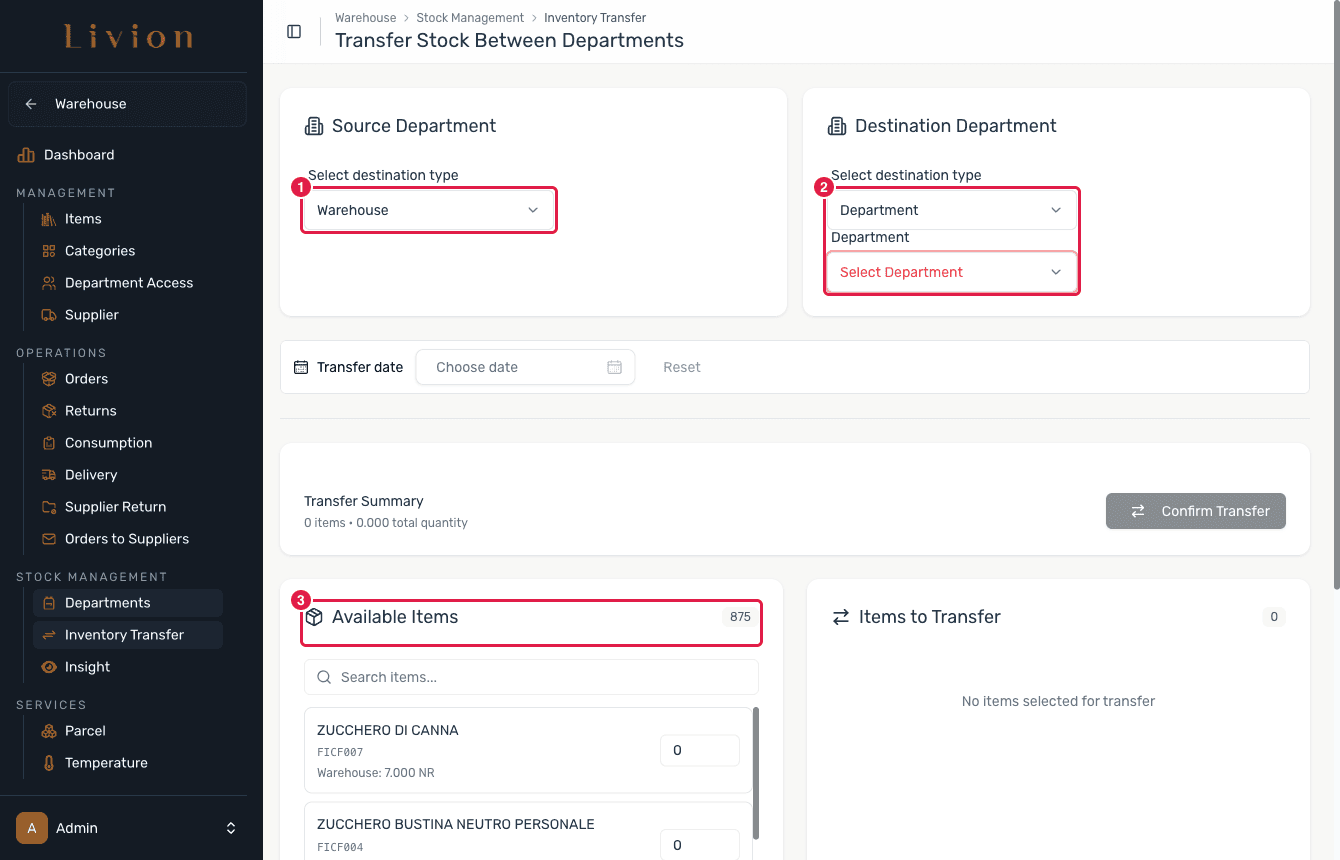
Choose source and destination
Select a Source and a Destination. Either side can be the central warehouse or a department, so you can move stock warehouse↔department or department↔department. The source and destination cannot be the same.
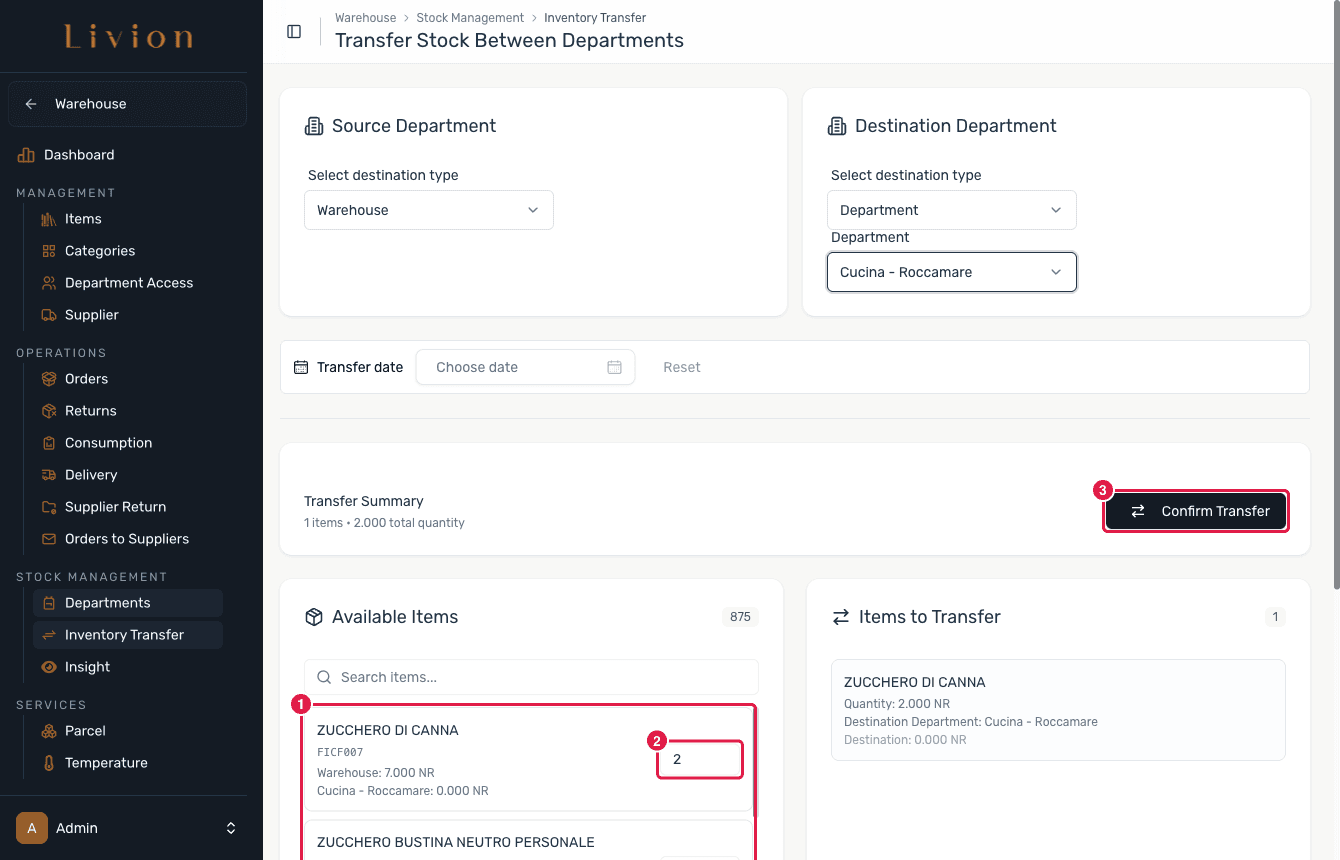
Add items and confirm
Add each item to move and enter a quantity greater than zero. Review the list, then confirm. The confirmation warns that this action cannot be undone.
What happens next
- The transfer runs as an asynchronous job. It applies the stock deltas — the source is decremented and the destination is incremented — and writes a transfer record together with the underlying stock movements.
- If any part fails, the whole transfer is rolled back, so stock is never left in a half-moved state.
- Open a completed transfer to see its detail and export it as CSV in the Livion or TeamSystem format.
A confirmed transfer cannot be undone. To reverse one, record a new transfer in the opposite direction. Department users can only transfer from their own department to a department destination.