

Orders
All orders issued by departments are listed here.
All orders issued by departments are listed here.
warehouse role.Fulfilling and declining orders requires the Warehouse administrator
permission. Departments raise their own orders through the self-service
inventory in /department/me; this page is where the administrator reviews and
fulfils what they request.
How it works
Review the order list
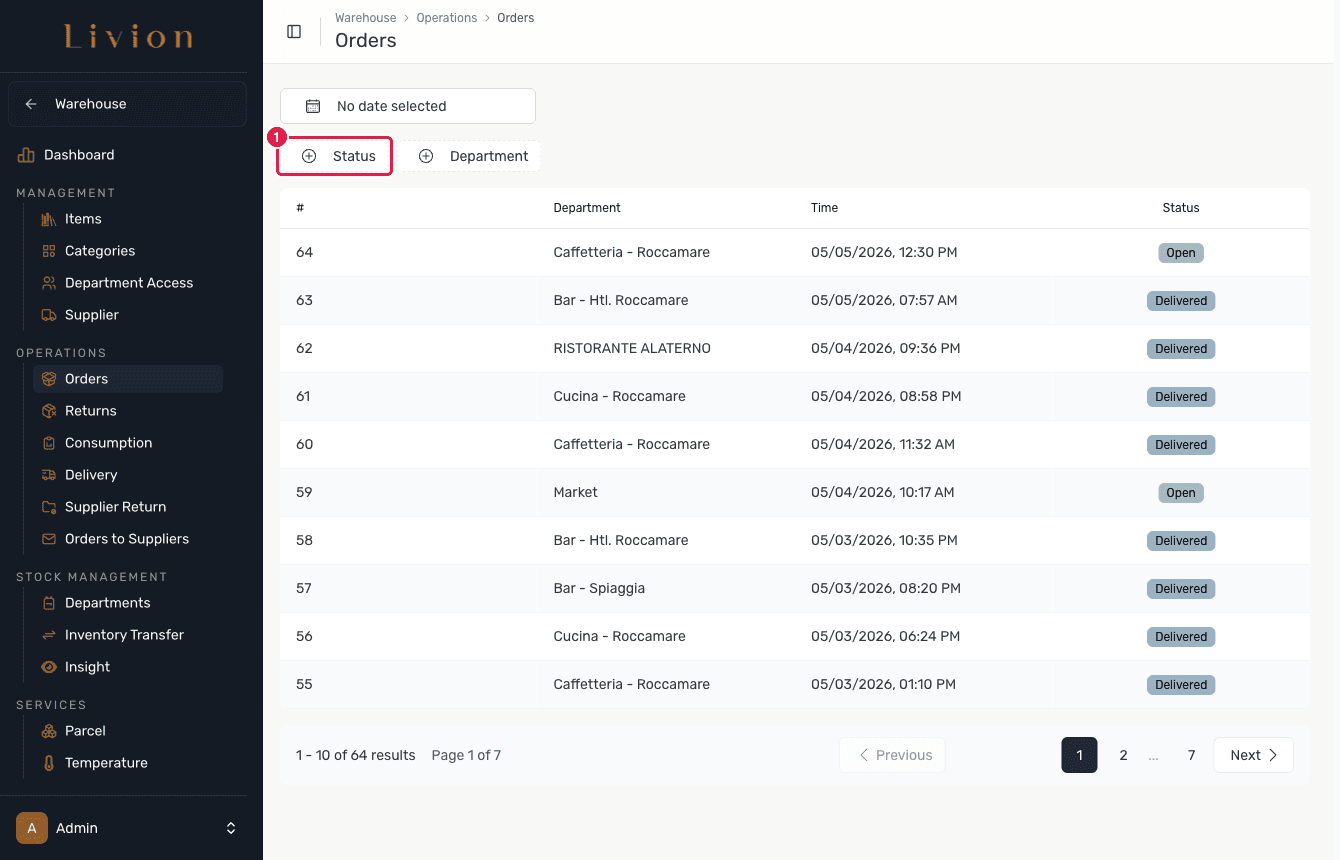
In the Warehouse module open Operations → Orders. Every order a department has placed is listed with its department and status — Open, Out for Delivery, Delivered, Confirmed or Declined. Filter by status, and export the list to CSV (Livion or TeamSystem format) when you need it for accounting.
Open the Order Inspector
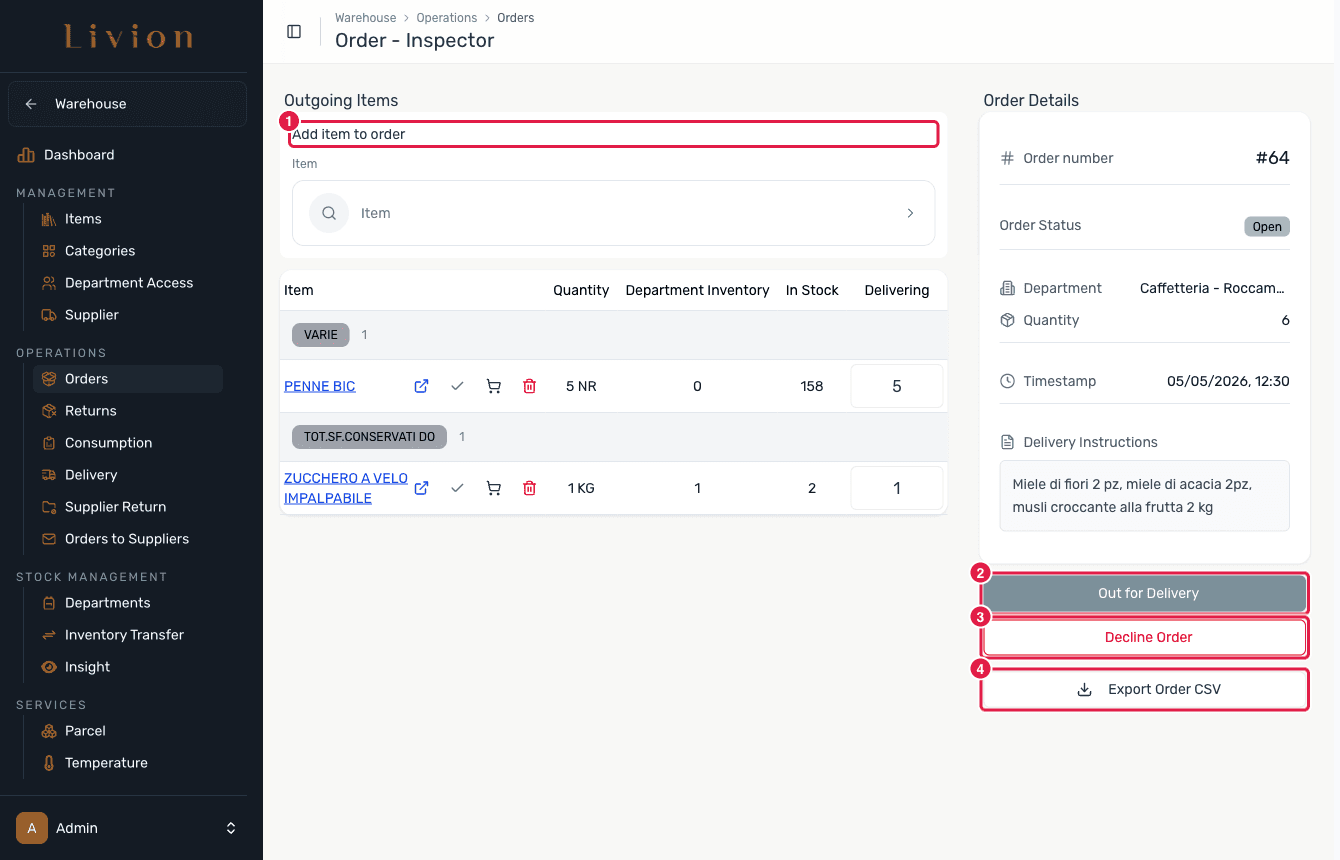
Open an order to reach the Order Inspector. It shows every requested item and quantity. While the order is Open you can add or remove items — an order must keep at least one item — before you fulfil it.
Fulfil or decline
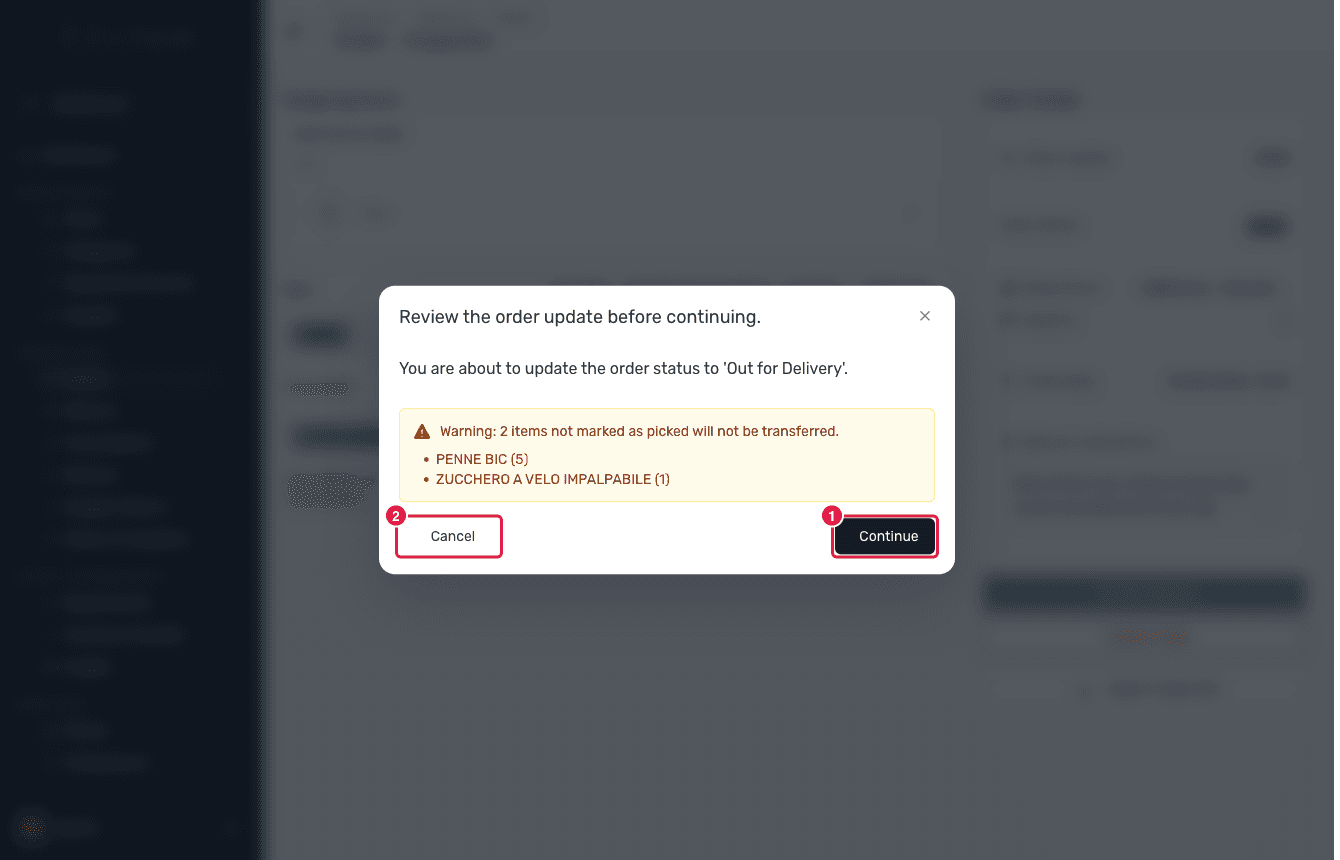
To fulfil an Open order, enter a confirmation quantity for each item and confirm. To turn the request down instead, choose Decline — available only while the order is Open. Declining is irreversible, moves no stock and notifies the department.
What happens next
- Confirmed items move into the department's inventory as a stock movement
(Type
ORDER), processed as an asynchronous job. - Any requested-but-unconfirmed remainder auto-creates a new Open replacement order, so nothing the department asked for is silently lost.
- Declining an order records no stock movement and notifies the department.
- The list can be exported to CSV in the Livion or TeamSystem format.
Fulfilling an Open order requires a per-item confirmation quantity. Decline is only available from Open and cannot be undone. A Delivered or Declined order can no longer be updated, and an order must always keep at least one item.