

Department Inventory
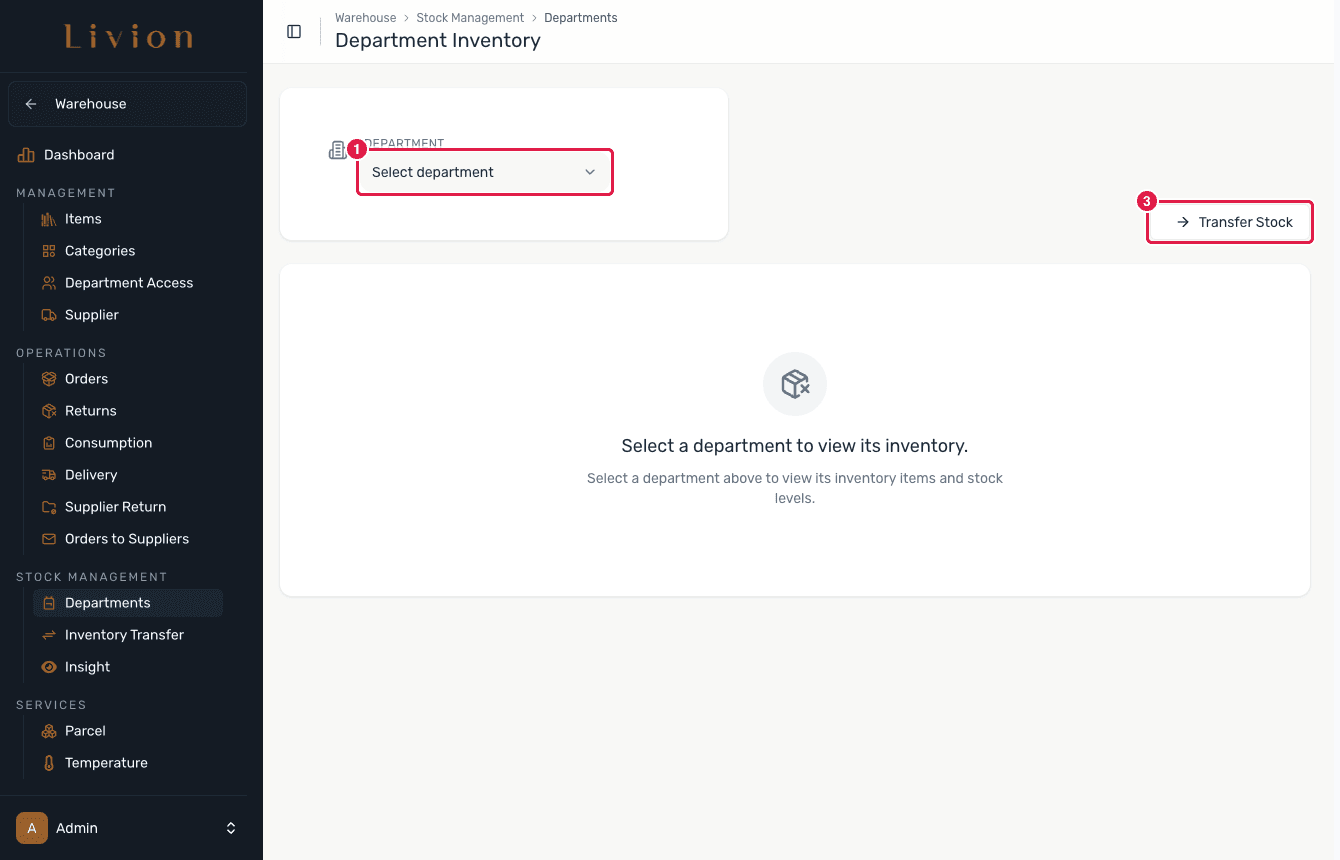
Select a department to view its inventory. Only departments with access to the warehouse are selectable.
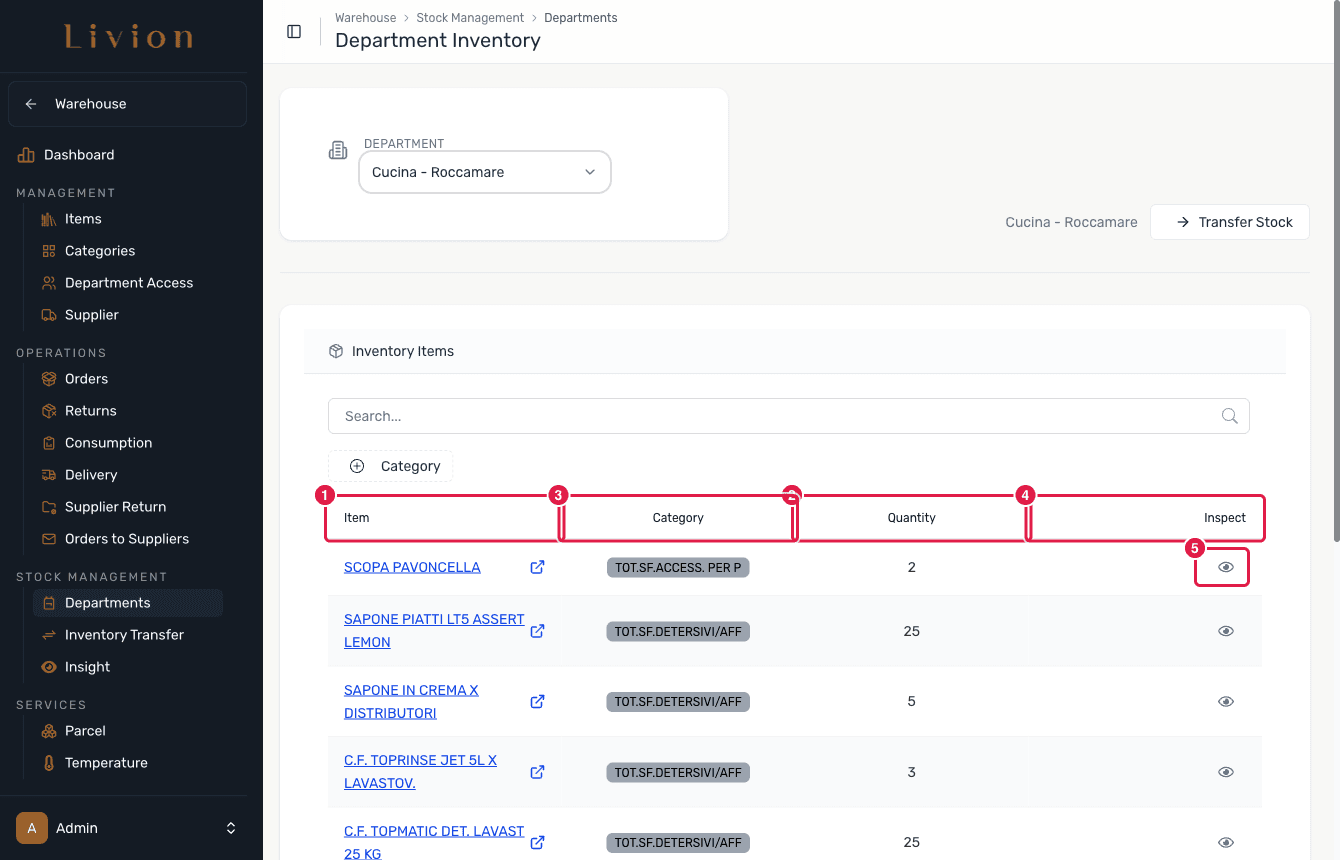
Department Inventory lets a Warehouse administrator pick a department and review exactly what stock it is holding, item by item.
warehouse role.Viewing department inventory requires the Warehouse administrator permission. Department users see their own inventory from their self-service page instead.
How it works
Select a department
In the Warehouse module open Stock management → Department Inventory and choose a department. Only departments that have been granted access to the warehouse are selectable — set this up under Department access first.
Review the department's stock
The list has columns Item, Category, Quantity and Inspect. Search or filter to find an item, and open any row to inspect it. This is a read-only view: quantities change only through transfers, consumption, orders and returns, never by editing them here.
Transfer stock
To move stock in or out of the department, use the Transfer Stock entry point, which opens the Inventory Transfer flow.
What happens next
- Viewing inventory writes nothing — it is a read-only snapshot of the department's current on-hand quantities.
- Starting a transfer from here hands off to Inventory Transfer, which is where stock actually moves between locations.
Only departments that have been granted warehouse access appear in the selector. Grant access first if a department is missing.