

Department self-service
Order stock, log consumption, return items and transfer stock for your own department.
This guide is for department users. Everything here is self-service for your own department only — your inventory, orders, returns, consumption and department transfers. You cannot manage the catalogue, suppliers or setup, and you cannot see other departments' data.
department role.Managing your own stock needs the WAREHOUSE_DEPARTMENT_INVENTORY permission.
Transferring stock to another department additionally needs the
WAREHOUSE_DEPARTMENT_STOCK_TRANSFER permission. Your department pages live
under /department/me/*.
Are you a warehouse administrator?
This page is for department users. If you manage the whole warehouse, follow the admin guides for orders, returns, consumption and transfers instead — confirming orders, accepting returns and fulfilling requests are done from the administrator side.
See your inventory
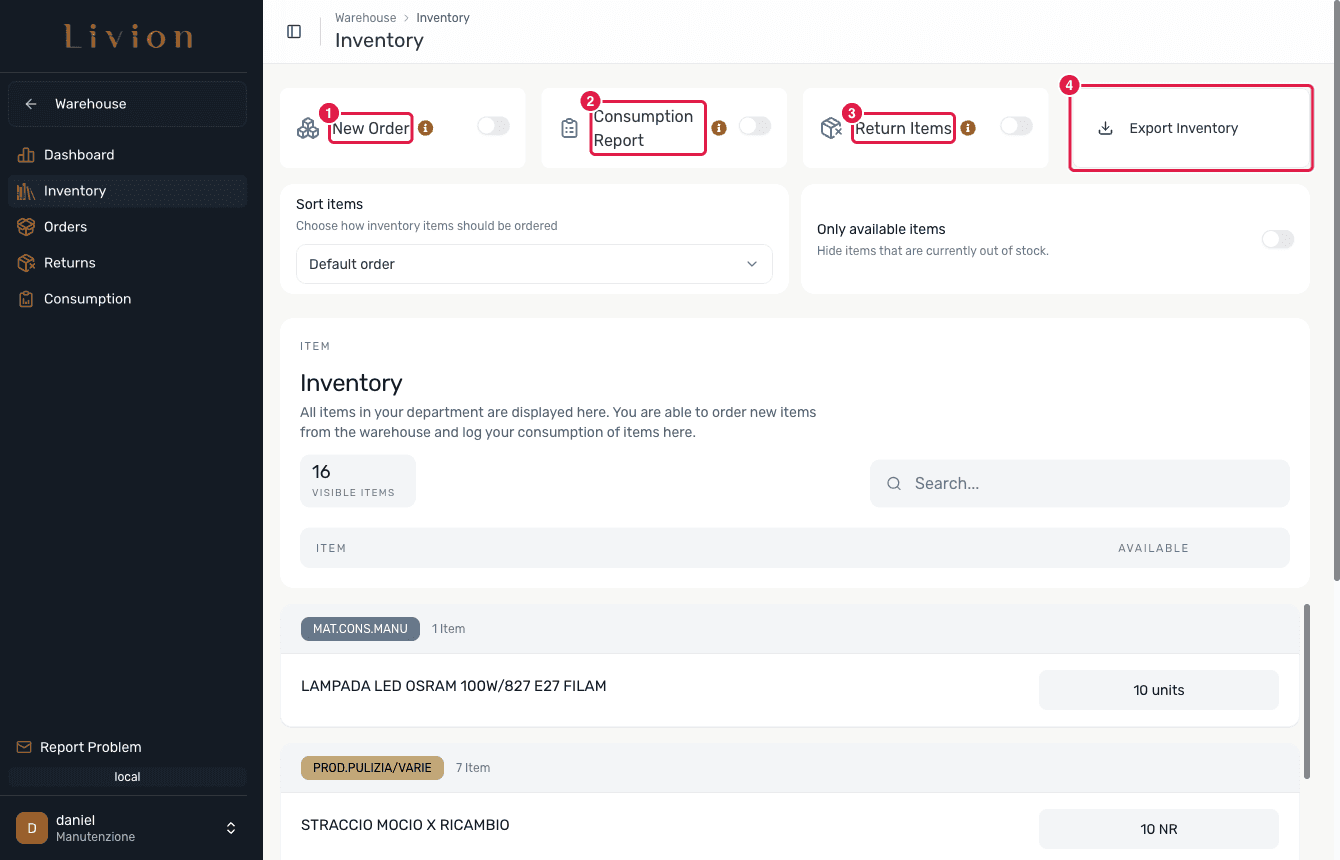
Open Inventory (/department/me/inventory) to see every item held by your
department with its current quantity. This screen is your home base: from here
you switch between three modes — new order, consumption report and
return items — and you can Export Inventory as CSV or PDF for a stock
count or a quick record.
Order stock from the warehouse
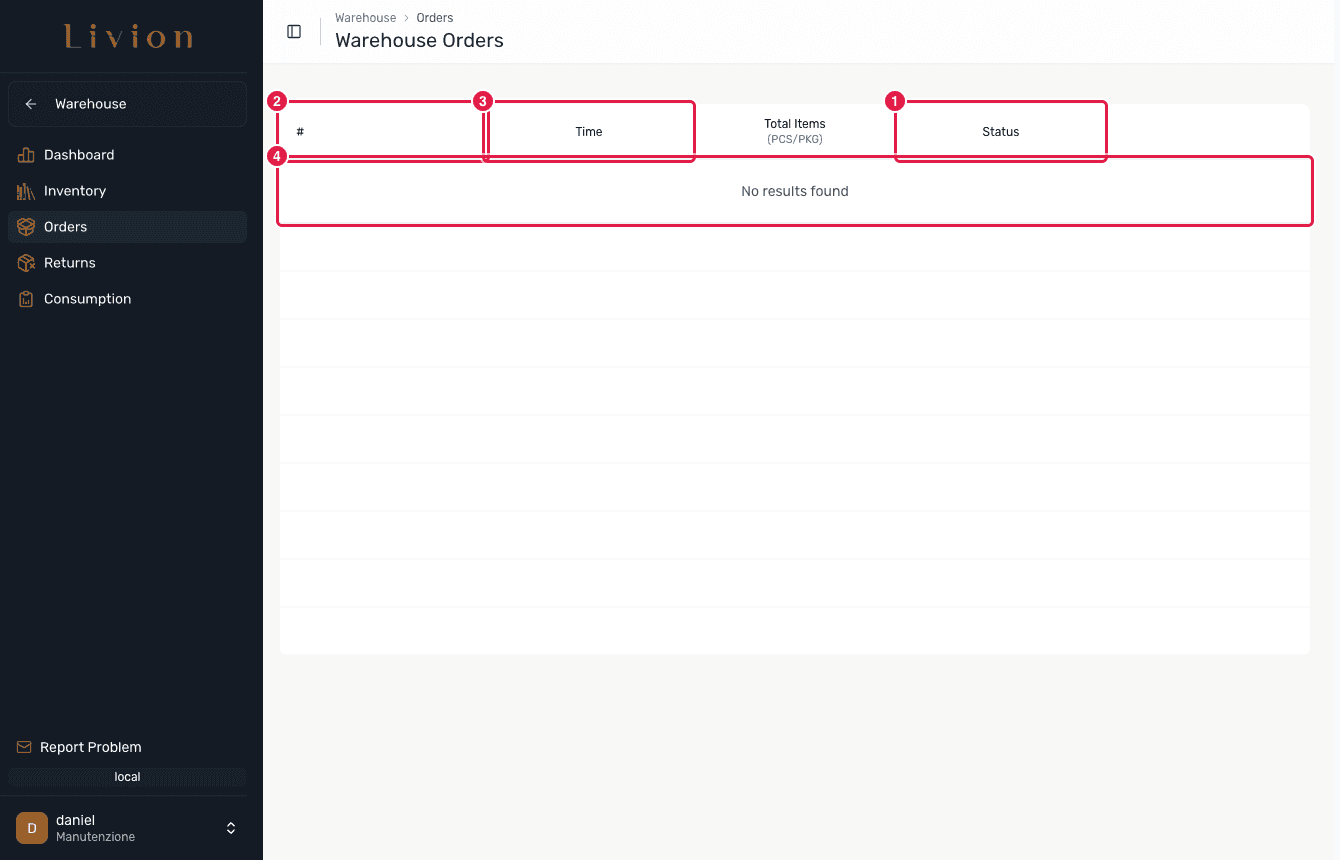
Open Warehouse Orders (/department/me/order) to create an order for the
items you need. When you submit, the order is sent to the warehouse as Open
and the warehouse team is notified. The items only arrive in your inventory once
the warehouse confirms and fulfils the order — ordering does not move stock
on its own.
You can view your orders and follow their status: Open, Out for Delivery, Delivered, Confirmed or Declined.
Who confirms an order
Confirming an order and marking it delivered is done by the warehouse administrator, not by your department. Your part is creating the order and tracking its status.
Record consumption
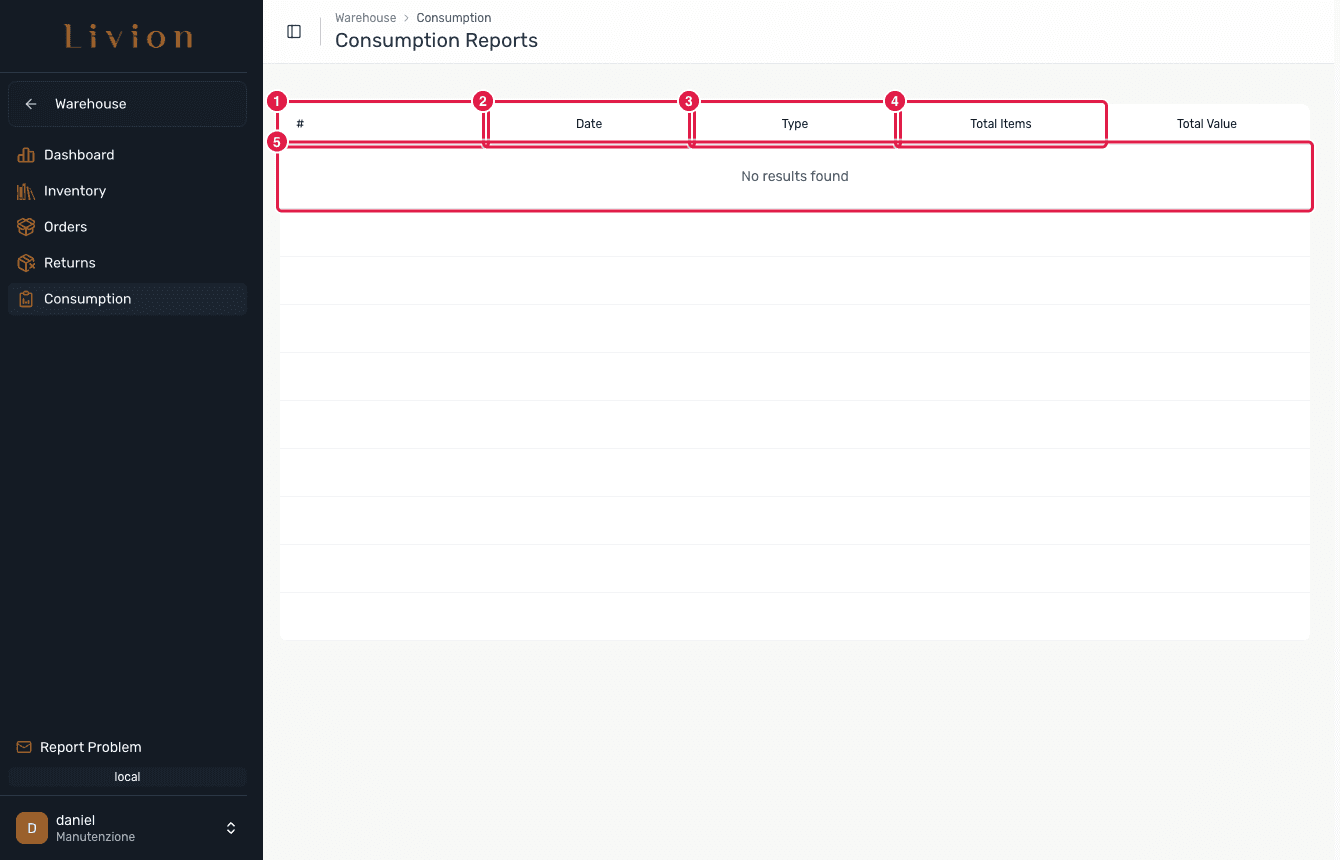
Open Consumption Reports (/department/me/consumption) to log what your
department has used. Choose a type for each report — Consumed,
Expired/Damaged or Gifted — and enter the quantities. Submitting a
report removes the quantity from your inventory.
You can view your past reports and revert one if it was a mistake; reverting adds the items back to your inventory. Large reports are processed in the background, so the inventory may take a moment to catch up.
Return items to the warehouse
Open Warehouse Returns (/department/me/return) to send items back to the
warehouse. When you submit a return, the quantity leaves your inventory
immediately and the return stays Pending until the warehouse decides:
- Accepted — the items move into the warehouse.
- Rejected — the items come back to your inventory.
Transfer stock to another department
Open Department Stock Transfer
(/warehouse/inventory/department-transfer) to move stock from your department
to another department. This needs the WAREHOUSE_DEPARTMENT_STOCK_TRANSFER
permission.
Your department is locked as the source, and the destination must be a department — you cannot transfer back into the warehouse this way. Choose the items and quantities, pick the destination department and confirm. The transfer warns that this action cannot be undone and then processes in the background.
What happens next
- Orders you place sit with the warehouse until an administrator confirms them; only then does stock arrive in your inventory.
- Consumption reports and accepted returns reduce your department stock; a reverted consumption report and a rejected return add the stock back.
- A department transfer moves stock straight from your department to another department and is recorded as a stock movement.
You can only see and act on your own department. Confirming orders, accepting or rejecting returns, and any catalogue, supplier or setup changes are handled by the warehouse administrator.