

Temperature
Log warehouse temperatures twice a day to ensure they are within the acceptable range.
Temperature logging keeps a twice-daily record of each warehouse cell's temperature, which a Warehouse administrator can print as a compliance report.
warehouse role.Temperature logging requires the Warehouse administrator permission.
How it works
Register a temperature
In the Warehouse module open Services → Temperature. It is a single page — no tabs — with the register form at the top and the readings table below it. Choose a cell, pick Morning or Evening under the Time of Day label, enter the temperature and click Register. The evening reading cannot be logged before the morning one has been recorded, and re-logging the same slot for a cell on the same day overwrites the earlier value — one record per cell, per slot, per day.
The acceptable range is a manual, operational expectation: the system stores the reading you enter but does not enforce a configured range or automatically flag out-of-range values.
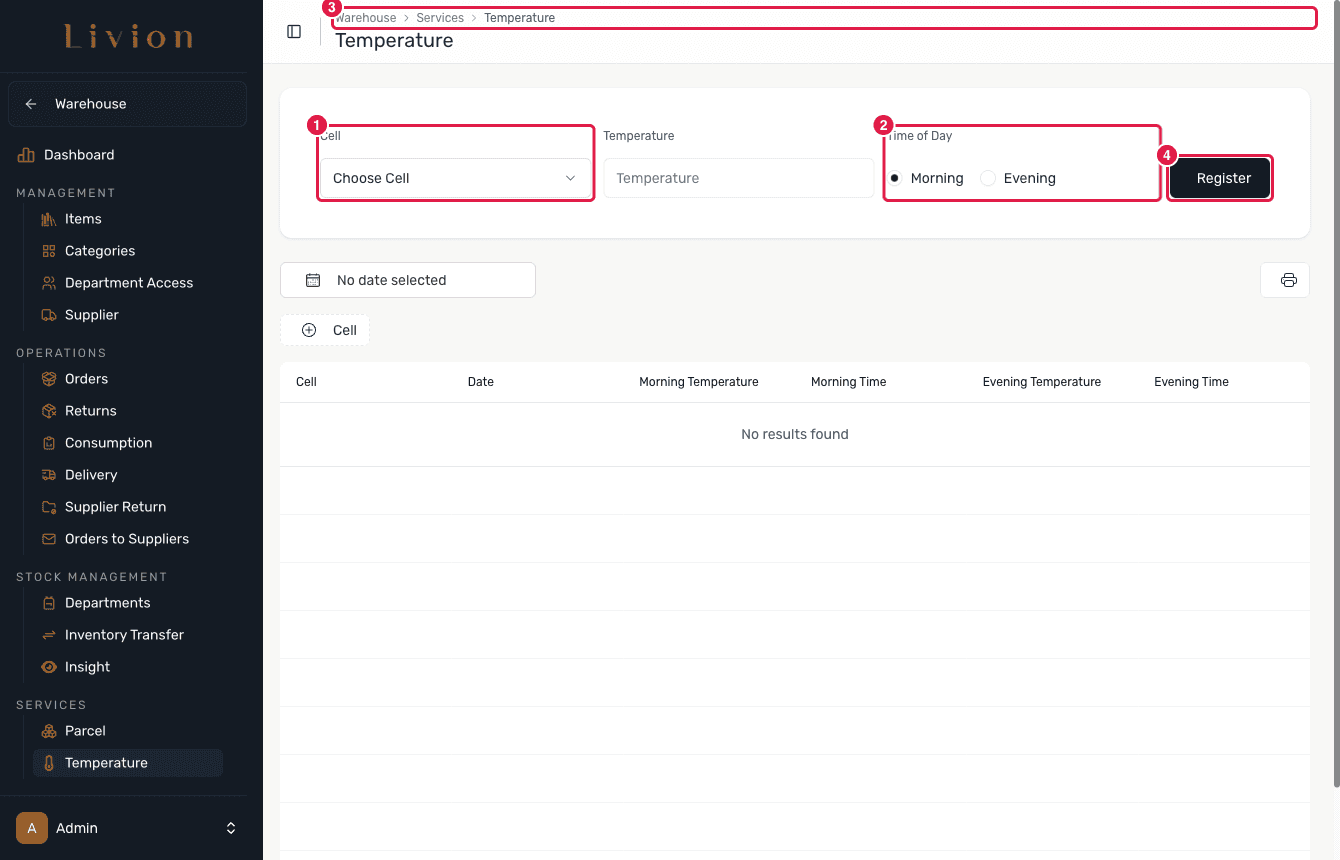
Manage cells
Use the Cell button to open the cell management page (route
/warehouse/temperature/cell), where you create, edit and delete the warehouse
cells you log. Deleting a cell is a soft-delete.
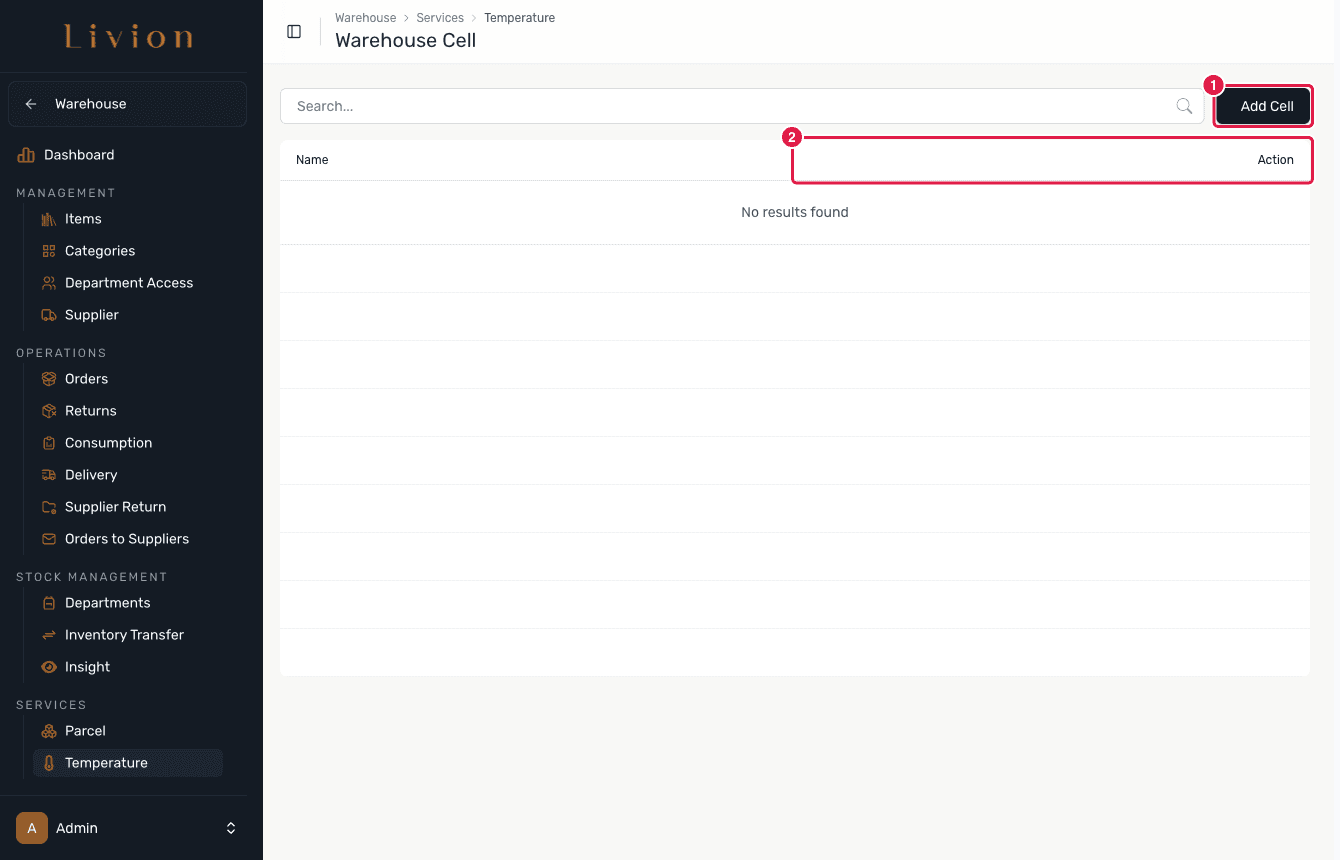
Generate a PDF
Use Generate PDF to produce a temperature report as a compliance record.
What happens next
- Registering a reading stores one temperature record per cell, per slot, per day; a second reading for the same slot overwrites the first.
- The PDF report compiles the logged readings into a document you can keep for compliance purposes.
The cell and temperature records carry no min/max range field. Livion does not enforce an acceptable range or auto-flag out-of-range readings — staying within range is a manual operational check, and the PDF is the compliance artefact.