

Supplier Return
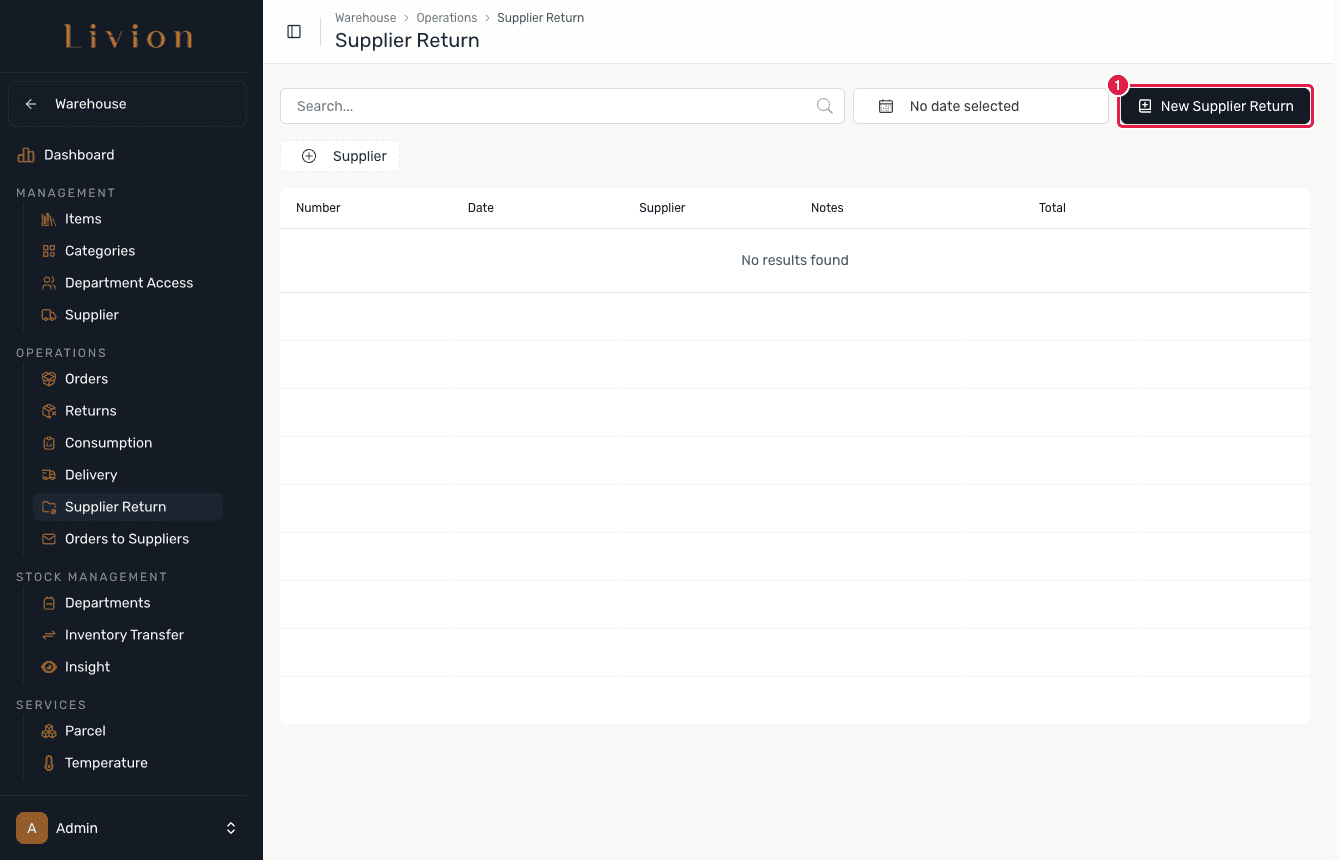
All supplier returns are listed here. You can create a new supplier return by clicking the button below.
All supplier returns are listed here. You can create a new supplier return by clicking the button below.
warehouse role.Returning warehouse stock to a supplier requires the Warehouse administrator permission.
How it works
Review supplier returns
In the Warehouse module open Services → Supplier Return. Every supplier return is listed with its supplier and status. Start a new one with the create button.
Build the return
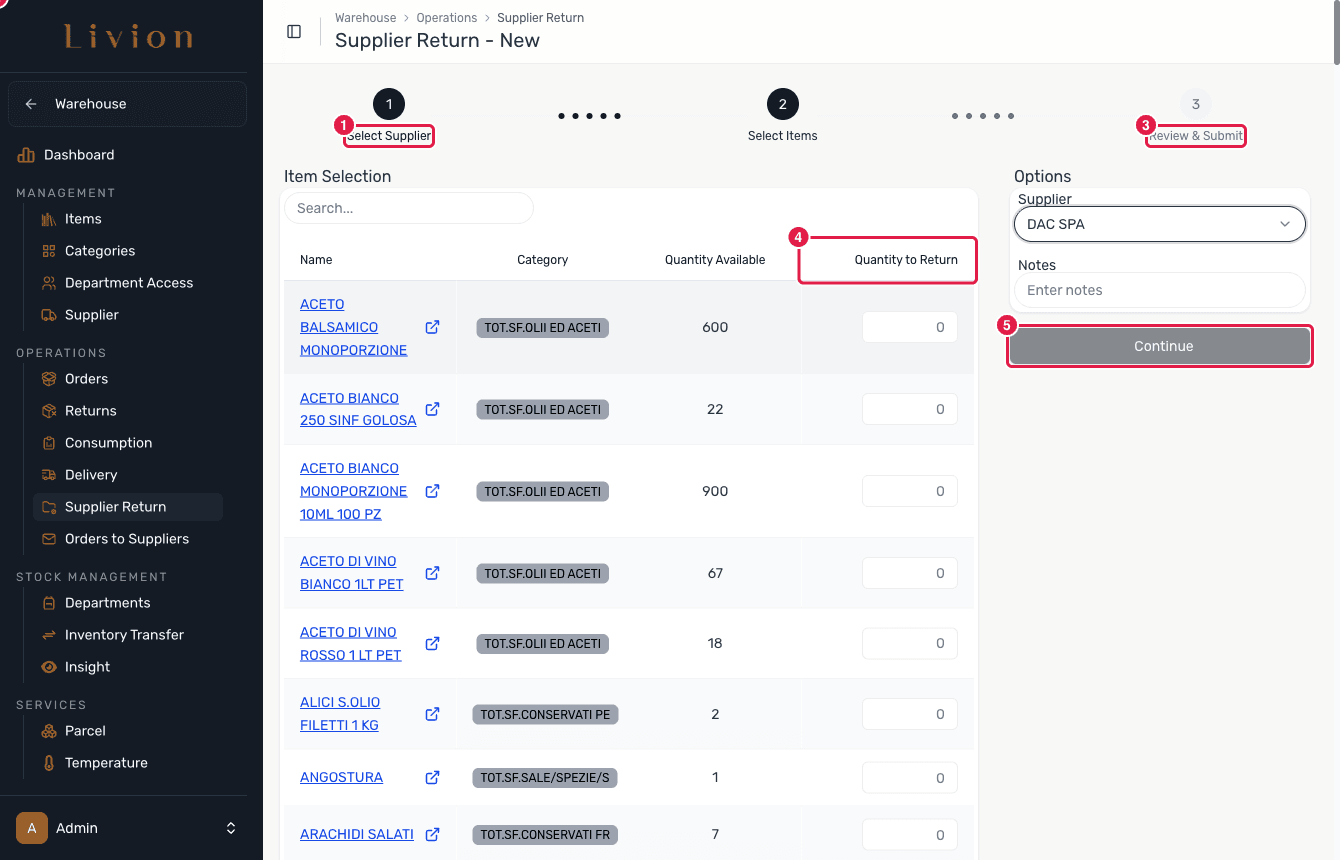
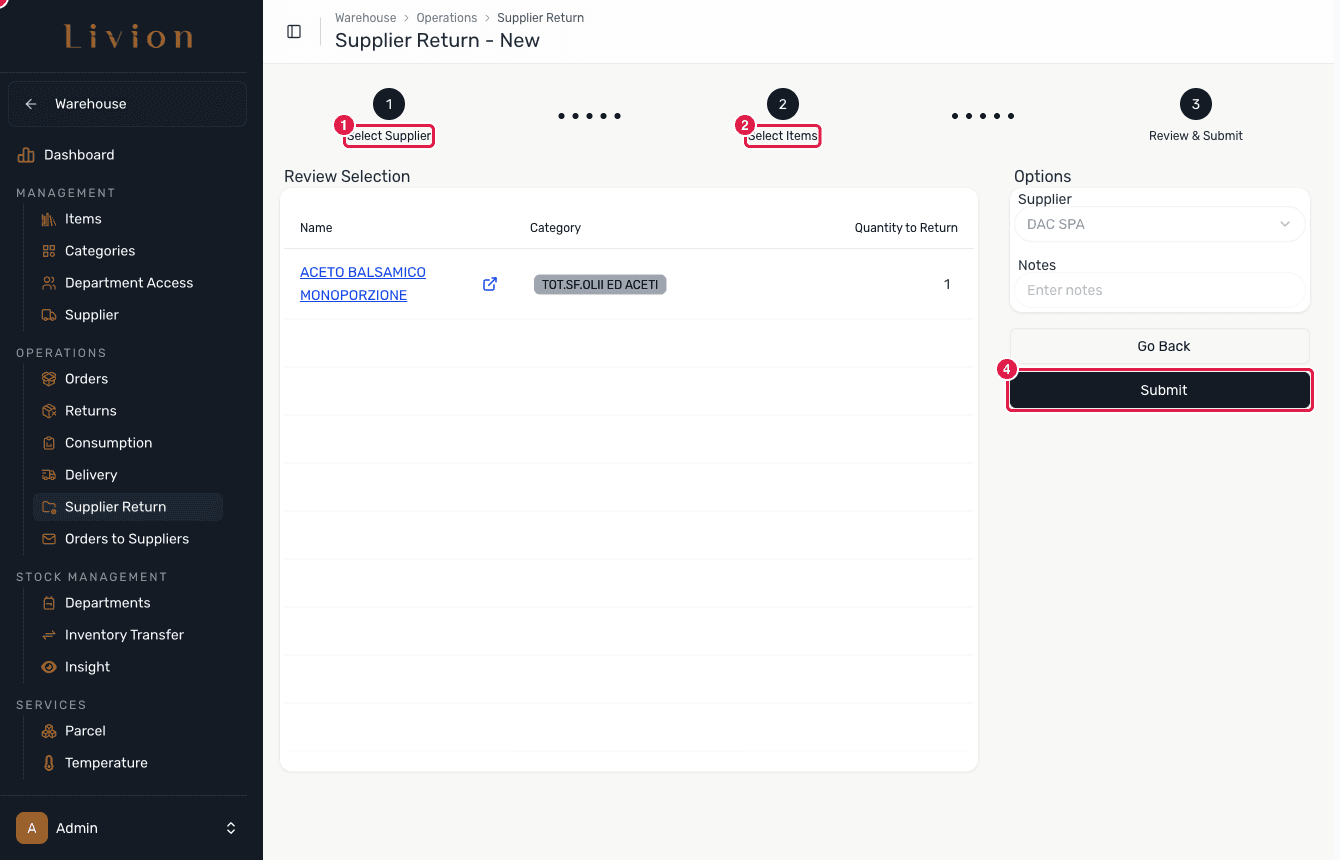
The new supplier return is a stepper: Select Supplier, then Select Items with a quantity to return, then Review & Submit. Submitting creates the return and removes the stock from the warehouse.
Send or revert
On the return's detail page you can download a transportation-document PDF, send that PDF to the supplier by email (with an optional CC), or Revert the return to move the stock back into the warehouse.
What happens next
- Creating the return removes the returned stock from the warehouse as a stock
movement (Type
SUPPLIER_RETURN), processed as an asynchronous job. - The detail page produces a transportation-document PDF that you can download or email to the supplier.
- Reverting the return moves the stock back into the warehouse.
Emailing the transport document needs the supplier to have an email address configured. After a Revert, the transport-document PDF is no longer available.